Interactive Classroom Management: A Checklist for Securing and Deploying Apps to Smartboards From a Central Dashboard
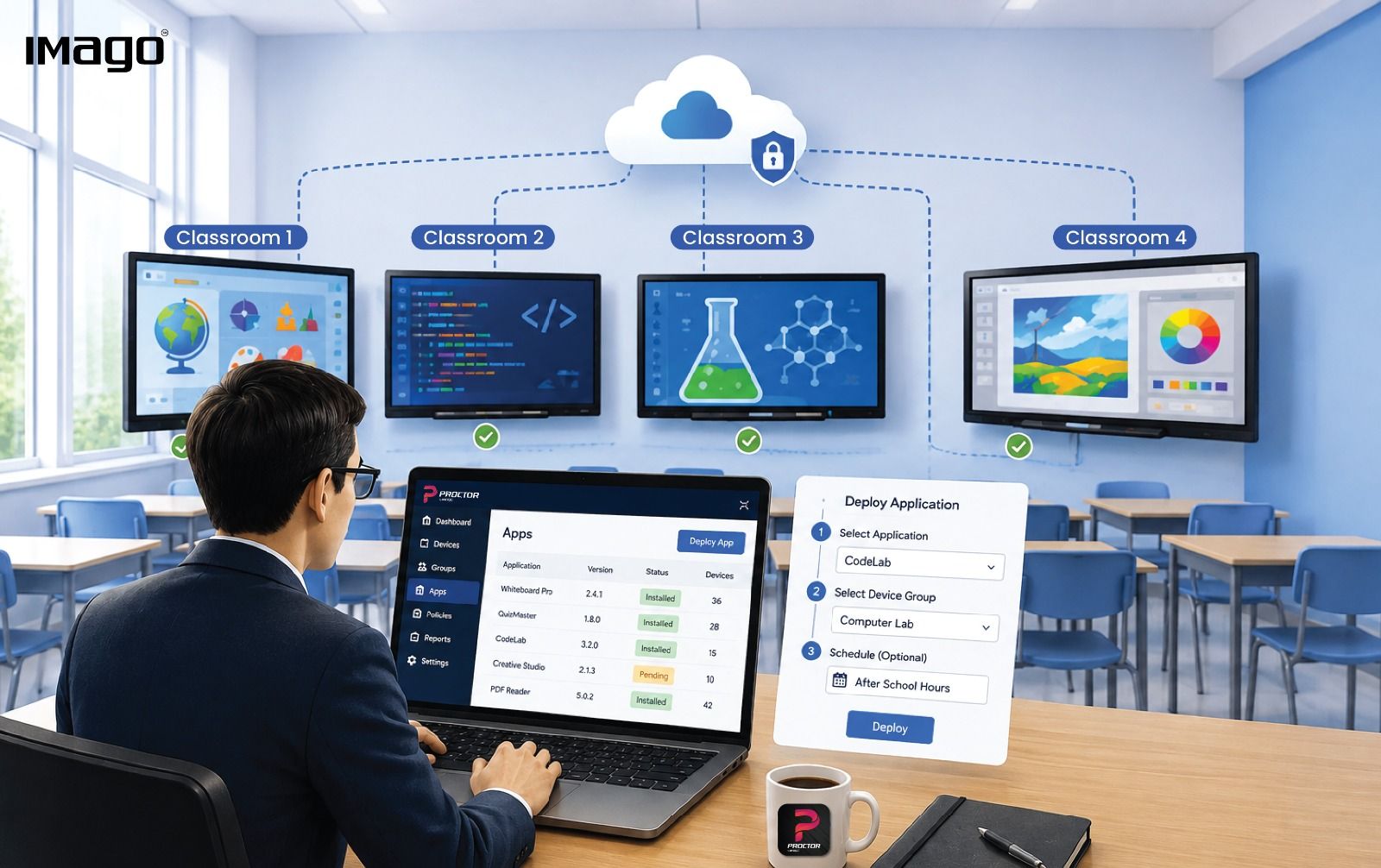
Interactive displays have become an important part of modern classrooms, but managing them effectively involves more than keeping the hardware operational. Applications play a major role in how smartboards are used, allowing teachers to support interactive assessments, creative activities, coding lessons, collaboration, presentations, and other learning experiences.
As the number of smartboards and applications increases, IT administrators need a structured approach to application management. Deploying an app to one device may be straightforward, but installing, securing, updating, and monitoring applications across multiple classrooms requires greater control and consistency.
A centralized device management platform can help IT teams streamline this process while maintaining appropriate security and administrative controls.
Here is a practical checklist for managing applications across a smartboard environment.
1. Assess Classroom Requirements and Application Needs
Before deploying an application, start by identifying why it is needed and where it will be used.
Different subjects and teaching approaches may require different applications. An assessment tool may be relevant to general classrooms, while coding applications may only be required in computer science rooms. Creative software may be more appropriate for art and design environments, while collaboration tools may be deployed across shared learning spaces.
IT and education teams should consider:
- Which applications are required by each subject or department?
- Which classrooms need access to each application?
- Does the application support a specific teaching or learning objective?
- Are there existing applications that already provide similar functionality?
- Is the application required across the entire device fleet or only selected smartboards?
Best practice: Avoid deploying every application to every device. Target applications according to actual classroom requirements.
2. Evaluate and Approve Applications Before Deployment
An application may provide useful functionality, but IT teams should also consider its security, privacy, compatibility, and ongoing maintenance requirements before making it available on managed devices.
Review factors such as:
- Application source and developer
- Required permissions
- Data collection and privacy practices
- Account and login requirements
- Network or cloud dependencies
- Compatibility with the smartboard's operating system
- Frequency of updates and ongoing support
- Licensing requirements
For educational environments, this is particularly important because smartboards may be used by teachers, students, visitors, and other users throughout the day.
Best practice: Establish an approved application list so that IT administrators have a clear standard for which software can be deployed across managed smartboards.
3. Secure Access to the Management Environment
Application deployment is ultimately an administrative function, so access to the management platform should be controlled carefully.
IT teams should ensure that only authorized personnel can install, remove, or modify applications across managed devices.
Consider implementing:
- Strong administrator authentication
- Role-based access controls
- Individual administrator accounts
- Appropriate permission levels
- Regular access reviews
- Secure administrator credentials
- Separation of administrative responsibilities where appropriate
This is important because a central dashboard can potentially affect many devices at once.
A single administrative action may change the software environment across an entire group of smartboards, making access control an important part of centralized device management.
Best practice: Give administrators only the permissions they need to perform their responsibilities.
4. Organize Smartboards Into Manageable Groups
Managing individual devices becomes increasingly difficult as the device fleet grows.
Instead, organize smartboards into logical groups based on how they are used.
For example:
- Primary classrooms
- Secondary classrooms
- Computer science rooms
- Art and design rooms
- Science laboratories
- Training rooms
- Meeting rooms
- Individual campuses or buildings
This makes it easier to determine which applications should be deployed to which devices.
5. Test Applications Before a Wider Deployment
Before deploying a new application across dozens of smartboards, test it on a limited number of devices.
A controlled pilot can help identify potential issues before they affect a larger number of classrooms.
Test for:
- Installation compatibility
- Application performance
- Touch and interactive functionality
- Network requirements
- Login and account requirements
- Compatibility with existing applications
- User experience
- Device performance
For example, an IT team could initially install a new application on two or three smartboards and allow teachers to use it during actual lessons.
If the application performs as expected, it can then be deployed more widely.
Best practice: Pilot first, then scale.
6. Deploy Applications From a Central Dashboard
Once an application has been approved and tested, the next step is deployment.
This is where centralized application management can significantly reduce administrative workload. Instead of accessing each smartboard individually, IT administrators can use a central dashboard to select the required devices and deploy the application remotely.
For organizations managing a large number of smartboards, this can make application deployment significantly more manageable.
With IMAGO Proctor, IT administrators can centrally manage application installation across multiple managed smartboards through a web dashboard.
Best practice: Use centralized deployment whenever the same application needs to be installed across multiple devices.
7. Schedule Deployments to Minimize Classroom Disruption
Application installations and updates should be planned around classroom schedules whenever possible.
Deploying software during an active lesson could interrupt teaching or temporarily affect device availability.
IT teams should consider scheduling deployments:
- Outside teaching hours
- During planned maintenance windows
- Before or after school
- During weekends or holidays where appropriate
Best practice: Align application deployment with operational schedules to minimize disruption to educators and students.
8. Manage Application Permissions and Access
Installing an application is only part of application management.
IT administrators should also understand what the application can access and whether those permissions are appropriate for the intended environment.
Depending on the application, consider:
- Camera access
- Microphone access
- Storage access
- Network permissions
- User account requirements
- External integrations
- Data collection
- Cloud services
Applications should only receive the permissions required for their intended functionality.
Best practice: Review application permissions as part of the approval process rather than after deployment.
9. Maintain Application Versions and Updates
Application management does not end once an application has been installed.
Applications may receive updates that introduce new features, resolve bugs, improve compatibility, or address security issues.
IT administrators should therefore maintain visibility over:
- Which applications are installed
- Which version is installed
- Which devices have the application
- Whether updates are available
- Whether devices are running outdated versions
Without centralized visibility, different smartboards may end up running different versions of the same application.
This can create inconsistencies when teachers move between classrooms.
Best practice: Establish a process for monitoring and maintaining application versions across the device fleet.
10. Monitor Deployment Status
A centralized deployment process should provide visibility into what is happening across the managed devices.
After pushing an application, IT administrators should be able to identify whether devices have successfully received the application or whether further action is required.
Potential issues may include:
- Device is offline
- Network connectivity problems
- Insufficient storage
- Application incompatibility
- Installation failure
- Device configuration issues
Monitoring deployment status allows IT teams to address these exceptions rather than discovering the problem later when a teacher needs the application.
Best practice: Treat deployment monitoring as part of the installation process—not an afterthought.
11. Review and Remove Unnecessary Applications
Application management also means knowing when an application should be removed.
An application may become unnecessary when:
- A curriculum changes
- A department adopts a different platform
- A software product is discontinued
- A license expires
- An application is no longer supported
- A security concern is identified
- The application is no longer being used
Regular application reviews can help prevent unnecessary software from accumulating across smartboards.
Best practice: Periodically review installed applications and remove software that is no longer required.
12. Maintain an Accurate Application Inventory
As the number of devices increases, it becomes increasingly difficult to remember which applications are installed where.
Maintaining an application inventory gives IT teams a clearer picture of the software environment.
The inventory should ideally provide information such as:
- Application name
- Application version
- Devices where it is installed
- Device group
- Deployment date
- Update status
- License information where applicable
This information can support troubleshooting, audits, software planning, and future deployment decisions.
Best practice: Maintain central visibility of the applications installed across the smartboard fleet.
13. Train Teachers and Support Staff
Application deployment is ultimately intended to support the people using the technology. Even when an application has been successfully installed, teachers may still need guidance on how to use it effectively.
IT and education teams can support adoption through:
- Quick-start guides
- Application demonstrations
- Teacher training sessions
- Internal knowledge bases
- Troubleshooting documentation
- Support channels
This helps ensure that application deployment translates into actual classroom value.
After all, installing an application is only useful if educators can use it effectively.
Best practice: Treat application deployment and user adoption as connected processes.
How IMAGO Proctor Supports Centralized App Deployment
Managing applications across multiple smartboards can become increasingly complex as an organization's device fleet grows.
The challenge is not simply installing an application. IT teams need to determine which devices require it, how it should be deployed, how deployment can be monitored, and how the application can be maintained over time.
IMAGO Proctor provides IT administrators with a central web dashboard for managing connected devices and supporting application deployment across multiple smartboards. Instead of managing each smartboard individually, administrators can manage application installation centrally across selected devices.
This can help reduce repetitive administrative work and provide a more scalable approach to managing applications across classrooms and other smart environments.
Ready to simplify the way you manage your connected devices?
Contact us today to learn more about IMAGO Proctor and our smart solutions: https://imago.us/contact-us/